The Data Warrior

Changing the world, one data model at a time. How can I help you?

Archive for the tag “#SQLDevModeler”

Better Data Modeling: Customizing Oracle Sql Developer Data Modeler (#SQLDevModeler) to Support Custom Data Types

On a recent customer call (for Snowflake), the data architects were asking if Snowflake provided a data model diagramming tool to design and generate data warehouse tables or to view a data model of an existing Snowflake data warehouse. Or if we knew of any that would work with Snowflake.

Well, we do not provide one of our own – our service is the Snowflake Elastic Data Warehouse (#ElasticDW).

The good news is that there are data modeling tools in the broader ecosystem that you can of course use (since we are ANSI SQL compliant).

If you have read my previous posts on using JSON within the Snowflake, you also know that we have a new data type called VARIANT for storing semi structured data like JSON, AVRO, and XML.

In this post I will bring it together and show you the steps to customize SDDM to allow you to model and generate table DDL that contain columns that use the VARIANT data type.

Read the details of how I did it here on my Snowflake blog:

Snowflake SQL: Customizing Oracle Sql Developer Data Modeler (SDDM) to Support Snowflake VARIANT – Snowflake

Enjoy!

Kent

The Data Warrior

P.S. If you are in Austin, Texas this weekend, I will be speaking at Data Day Texas (#DDTX16). Snowflake will have a booth there too, so come on by and say howdy!

Better Data Modeling: Discovering Foreign Keys (FK) in #SQLDevModeler (SDDM)

A while back I had an interesting situation when I was attempting to reverse engineer and document a database for a client.

I had a 3rd party database that had PKs defined on every table but no FKs in the database. The question I posed (on the Data Modeler Forum) was:

How do I get the FK Discover utility to find FK columns with this type of pattern:

Parent PK column = TABCUSTNUM

Child FK column = ABCCUSTNUM

So the root column name (CUSTNUM) is standard but in every table the column name has a different 3 character “prefix” that is effectively the table short name. Is there way to get the utility to ignore the first three characters of the column names?

This was in SDDM 4.1.873.

No easy answer.

Well, the ever helpful Philip was very kind and wrote me a slick custom Transformation Script that did the trick! (Check the post if you want to see the code.)

But wait there’s more!

In his response he mentioned a feature coming in 4.1.888 – the ability to include a table prefix as part of a FK column naming template (just like this app had done).

Cool, I thought, but how does that help?

Well with the template in place it turns out that you can have the FK Discovery utility search based on the Naming Template model rather than just look for exact matching column names.

Using the Custom Naming Template

So recently (today in fact) I was trying to add FKs to the Snowflake DB model I reverse engineered a few weeks back (Jeff pointed out they were missing). I noticed the model had that pattern of a prefix on both the FK and PK column names.

In the CUSTOMER table the PK is C_CUSTKEY. In the ORDER table it is O_CUSTKEY. Nice simple pattern (see the diagram below for more). That reminded me of the previous issue and Philip’s script.

Snowflake Schema

Off to OTN to find that discussion and refresh my memory.

In the post, Philip has posted an example of a template that fit my previous problem:

{table abbr}SUBSTR(4,30,FRONT,{ref column})

With the note that {table abbr} would be the equivalent of what I called the table prefix. So first I went to the table properties and put in the prefixes using the Abbreviation property:

Add Table Abbrev

Then all I had to do was modify his example to account for the underscore and the fact that the main column text would start at character #3 instead of #4:

{table abbr}_SUBSTR(3,30,FRONT,{ref column})

I input that by going to Properties -> Settings -> Naming Standards -> Templates and then editing the default template:

Set up FK template

Discover FKs!

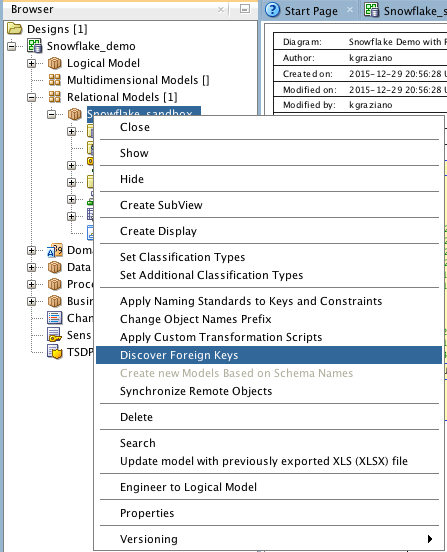
Now it was just a matter of running the utility. You find that with a right mouse click on the Relational Design node:

Discover FK tool

Next you get the list of candidate FKs:

Create FKs

Note that the utility also suggested some FKs based on the unique constraints (UKs) as well. I did not want those, so I unchecked them before I hit “OK”.

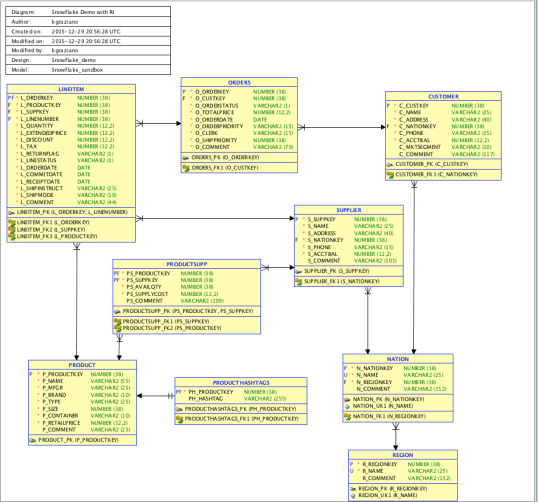
The result was getting all the FKs I wanted added into my model! Viola!

Snowflake with RI

So I can happily report that Philip’s little enhancement works just fine in 4.1.3. WooHoo! I can see this being very useful for a lots of cases in the future.

In a future post (early next year), I will continue with showing how we implemented Referential Integrity constraints in Snowflake DB and if I can generate the DDL from #SQLDevModeler.

Happy New Year Y’all

Kent

The Data Warrior & Snowflake Technical Evangelist

Data Warrior Agenda for 2016

Hard to believe 2015 is almost over.

It was a very busy year for me:

All of that has entailed a lot of air miles! This year I have visited:

  1. Denver (several times!)
  2. Salida, Colorado
  3. Hollywood, Florida,
  4. Raleigh, NC
  5. Charlotte, NC (thanks to Lynn Winterboer for that one!)
  6. San Francisco
  7. Redwood City, California (Oracle HQ)
  8. Austin (drove this one)
  9. Minneapolis/ St Paul (thanks to Redpill Analytics mostly)
  10. Kansas City, Missouri
  11. Portland, Maine
  12. St Albans, Vermont
  13. Stowe, Vermont
  14. San Mateo, California (HQ for Snowflake Computing)

And that was just work related! Family trips took me to:

  1. Galveston (beach!)
  2. South Padre Island, TX (more beach!)
  3. Road trip to Central NY:
    1. Joplin, Missouri
    2. Hannibal, Missouri (Mark Twain museum)
    3. Chicago (to see robots at the Museum of Science and Industry)
    4. Sandusky, Ohio (just to sleep)
    5. Fulton, NY (to see my dad)
    6. Old Forge, NY (summer vacation in the mountains!)
    7. Huntsville, Alabama (NASA Rocket Center!)
  4. Who knows – the year is not over yet!

Speaking in 2016

2016 will be very busy with the new job for sure. I am already booked for a bunch of events. Here they are so far:

Data Day Texas – January 16 in Austin, TX

TDWI Webinar – Dymstyfying Elastic Data Warehousing (with Philip Russom) – January 26th

BIWA Summit – January 26-28 at Oracle HQ

RMOUG Training Days 2016 – Febuary 9-11 in Denver, CO (I have 2 hour deep dive on Feb 9th). Register early for discounts.

Enterprise Data World – April 17-22 in San Diego. Register early for discounts (by the end of the year for the best rate).

ODTUG KScope16 – June 26-30 in Chicago, IL. Register early and be sure to book the hotel!

Also likely speaking at World Wide Data Vault Consortium (WWDVC) – May 25-28 in Stowe, Vermont (TBD)

And many more to come! (watch my twitter feed for updates)

Hopefully I will see you at one or more of these events!

Wishing a safe a joyous holiday season!

Merry Christmas & Happy New Year!

Kent

The Data Warrior


Tech Tip: Connect to Snowflake db using #SQLDevModeler

So, some of you may have noticed that I took “real” job this week. I am now the Senior Technical Evangelist for a cool startup company called Snowflake Computing.

Basically we provide a data warehouse database as a service in the cloud.

Pretty cool stuff. (If you want to know more, check out our site at snowflake.net)

I will talk more about the coolness of Snowflake (pun intended) in the future, but for now I just want to show you how easy it is to connect to.

Of course the first thing I want to do when I meet a new database is see if I can connect my most favorite data modeling tool, Oracle SQL Developer Data Modeler (SDDM),  to it and reverse engineer some tables.

The folks here told me that tools like Informatica, MicroStrategy, and Tableau connect just fine using either JDBC or ODBC, and that since we are ANSI SQL compliant, there should be no problem.

And they were right. It was almost as easy as connecting to Oracle but it was WAY easier than connecting to SQL Server.

First you need a login to a Snowflake database. No problem here. Since I am an employee, I do get a login. Check.

We have both a web-UI and a desktop command line tool. Turned out I needed the command line tool which incidentally needed our Snowflake JDBC connector to work. Followed the Snowflake documentation, downloaded the JDBC drive (to my new Mac!). Piece of cake.

So connecting from SDDM is really easy. First add the 3rd party JDBC driver in preferences. Preferences ->Data Modeler -> Third Party JDBC Driver (press the green + sign, then browse to the driver).

Add JDBC Driver

As you can see our JDBC driver is conveniently named snowflake_jdbc.jar.

Next step is to configure the database connection. To do this you go to File -> Import -> Data Dictionary, then add a new connection in the wizard.
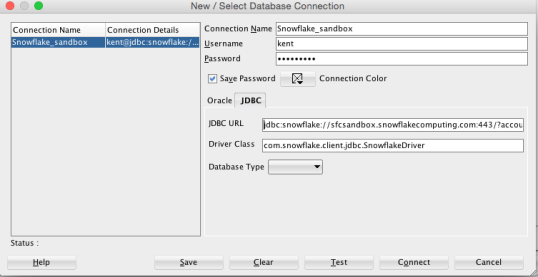
Configure Connection

Give at a name and login information, then go to the JDBC tab.

So getting the URL was the trick (for me anyway). Luckily the command line tool displayed the URL when I launched it in a terminal window, so I just copied it from there (totally wild guess on my part).

So the URL (for future reference) is:

jdbc:snowflake://sfcsandbox.snowflakecomputing.com:443/?account=<service name>&user=<account>&ssl=on

Where account is whatever you named your account in Snowflake (once you have one of your very own that is).

The driver class was a little trickier – I had to read our documentation! Thankfully it is very good and has an entire section on how to connect using JDBC. In there I found the drive class name:

com.snowflake.client.jdbc.SnowflakeDriver

That was it.

I pushed the Test button and success!

Now to really test it, I did the typical reverse engineer and was able to see the demo schema and tables and brought them all in.
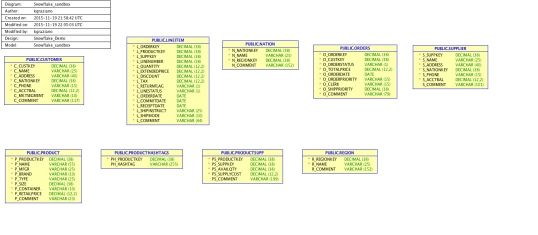
Snowflake Schema

Demo schema in Snowflake (no, not a snowflake schema!)

So I call that a win.

Not a bad weeks work really:

  1. New job orientation
  2. Start learning a new tech and the “cloud”
  3. Got logged in
  4. Installed SDDM on a Mac for the 1st time ever!
  5. Configured to speak to an “alien” database
  6. Successfully reverse engineer a schema
  7. Blog about it.

So that was my 1st week a a Senior Technical Evangelist.

TGIF!

Kent

still, The Data Warrior

P.S. If you want to see more about my week, just check my twitter stream and start following @SnowflakeDB too.


SALE: Oracle SQL Developer Data Modeler Jump Start

So in honor of the upcoming #OOW15 and User Group Sunday Symposiums, I decided to put my video workshop for #SQLDevModeler on Sale!

Why use #SQLDevModeler?

If you were an Oracle Designer user and are looking for a replacement data modeling tool, or you are using one of the other mainstream, expensive modeling tools and want a more cost effective alternative, then you owe it to yourself to look at Oracle SQL Developer Data Modeler (SDDM). Data Modeler has been around for years now and is up to version 4.1. It really is an industrial strength data modeling tool that can be used for any data modeling task you need to tackle. (And it works with MS SQL Server and DB2, not just Oracle.)

#SQLDevModeler is a fully functional tool provided for FREE by Oracle. It has many features built in that can be leveraged to capture the design of an existing (probably undocumented) database and re-engineer it or you can use it to design a new database, even a data warehouse from scratch. There are features to apply standards, and then generate DDL to implement your newly standardized design. You can even use one logical model to develop multiple physical models that can be deployed to different RDBMS. You also have options on the type of notation used in the diagrams (i.e., Barker, IE, etc.).

Workshop? What Workshop?

I’m so glad you asked! 😉

Since there was no one around teaching classes on SDDM, I figured I should build one that would be easily accessible and show you exactly how to use the tool for the most common data modeling tasks.

This workshop will start from a totally blank page and walk you through all the major features and options of the tool to show you how to design build and deploy a database. I provide lots of examples and tips on how to do all this so that you can quickly be productive.

In this workshop, I introduce you to the tool and show you how to use some of the cool features I use almost daily. I provide step-by-step instructions on how to use these features.

In this 4+ hour long workshop you will see:

  • How to create new objects from a blank page
  • How to build a logical ERD (with sub-types!)
  • How to reverse engineer and document existing databases
  • How to reverse engineer logical models from physical
  • How to use the visual view builder
  • How to use the interactive view testing tool
  • How to reconcile a model to the database or the database to a model
  • How to generate DDL for multiple RDBMSs (Not Just Oracle!)
  • How to generate a script to change an existing database

Tips, tricks and features I will demonstrate:

  • Modifying the delivered reporting templates
  • How (and when) to use the abbreviations utility
  • How to use and apply domains
  • How to create and applying object naming templates
  • How to add audit columns to every table
  • How to add custom design rules for model quality checks
  • How to use the built in quality checks
  • How to use the newest find and extract feature to enable updating table and column comments by end users
  • How to generate a simple data dictionary

As an added bonus, in addition to step by step slides, I also give you a live demonstration of important aspects of the tool.

By the end of the workshop you will be able to effectively use Oracle SQL Developer Data Modeler for all your data modeling tasks.

So how about a sample?

The platform that we used to deliver the video is pretty darn good, but I figured you might want to see what the content looks like so here are two modules taken right out of the class. The first one talks about using sub views in SDDM, and the 2nd one talks about creating Entities.

Enjoy!

 Subviews

Entities

Sale Coupon!

So ready to sign up?

Great. Go here to get right in!

Normally the price is $1299  (which is MUCH less than you would have to pay me to come to your office and teach you myself), but for a limited time, I am giving a big discount so that even more folks can afford it.

Use coupon code KentSDDM to get $300 off the regular price.

I am sure you will find this a very useful workshop with examples you can use (yes there are a few downloads when you finish the class). The examples alone will save you a bunch of time and money.

But don’t take my word for it:

So sign up today, start watching, then you can ask me questions at #OOW15!

Cheers.

Kent

The Data Warrior

P.S. The sale will not last long, so be sure to jump in now to save $300 while you can. Go on, sign up here (you know you should).

Post Navigation